Stock checks and storefront forms
Build stock forms, share QR access, collect counts, and review low-stock activity.
Updated July 2, 2026
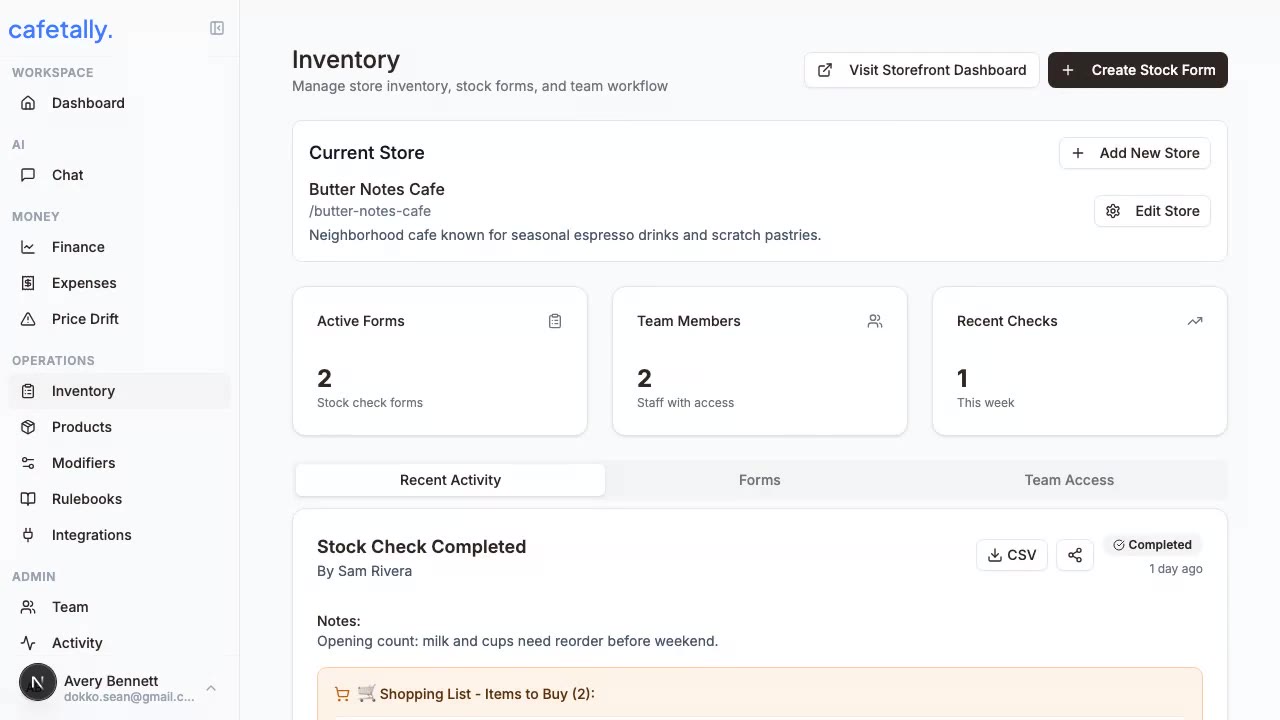
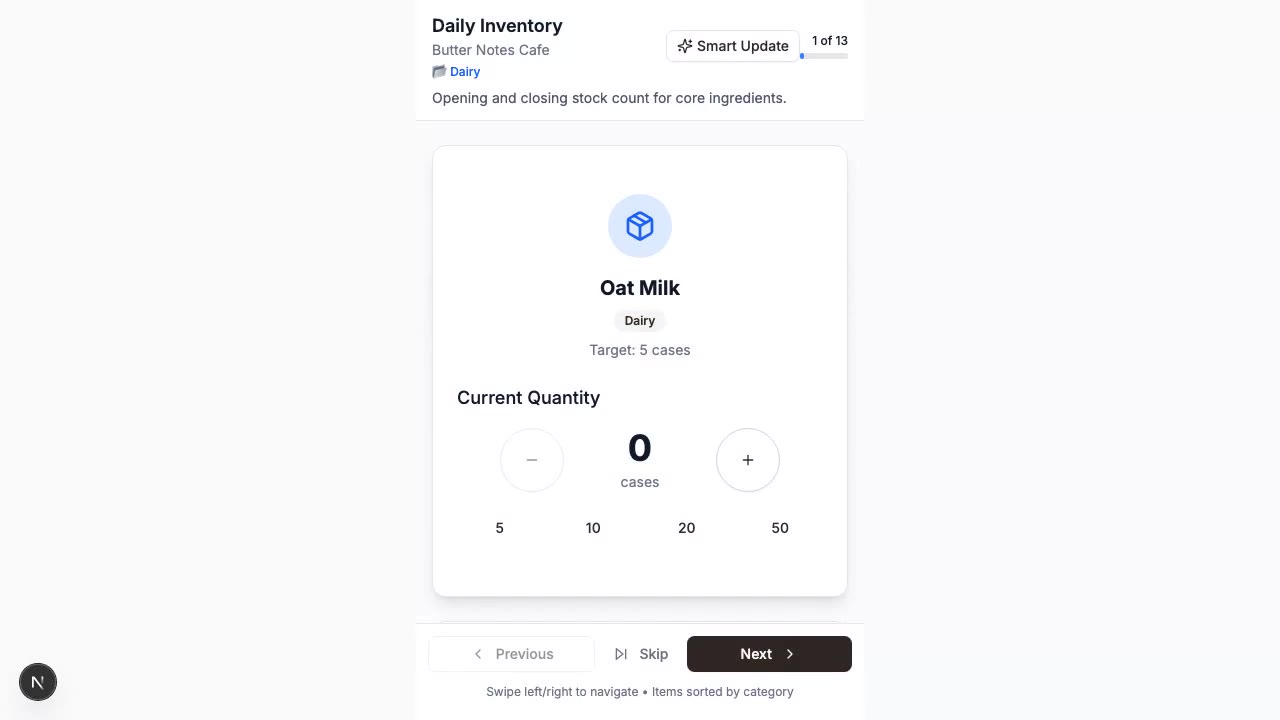
Stock checks turn repeated inventory counts into a store workflow. Managers build forms in the dashboard and staff complete those forms from store-specific links or QR codes.
Core concepts
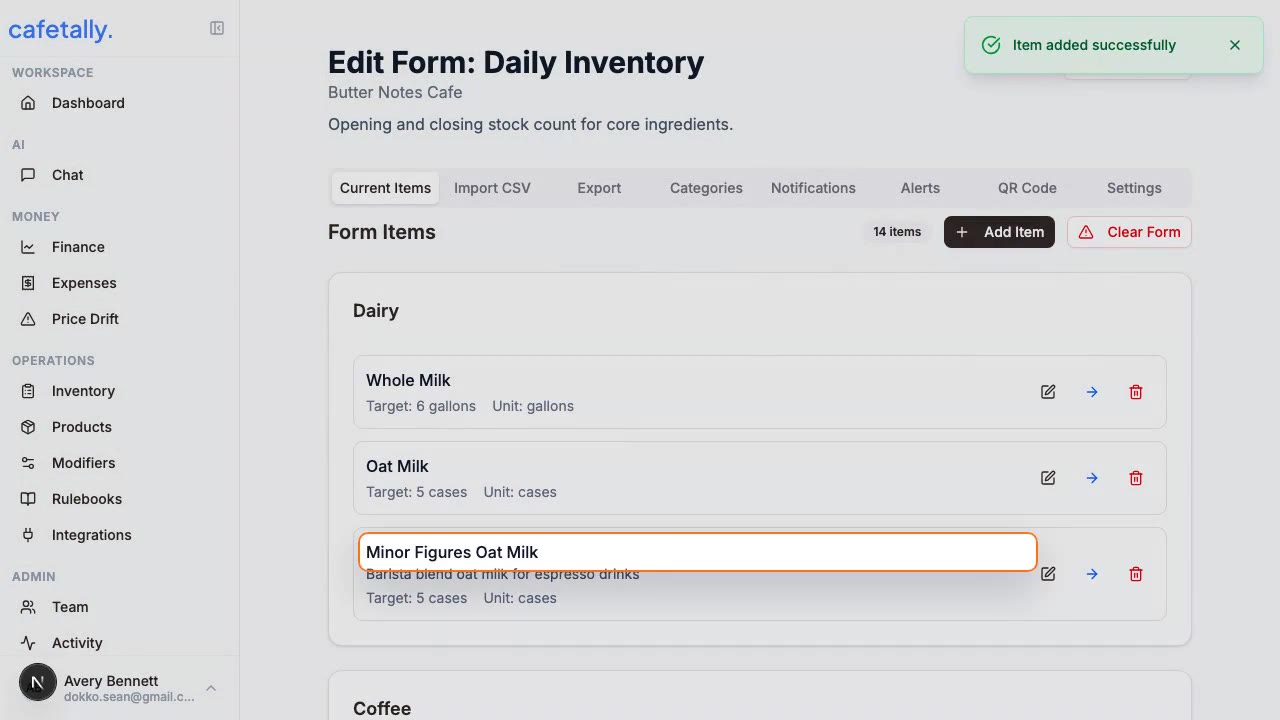
A store contains one or more stock check forms. A form contains the items the team counts together, such as milk, syrups, cups, pastries, or retail bags. Each item can have a quantity, unit, par level, low-stock threshold, and notes. Recent submissions feed the stock dashboard so owners can see what changed.
Demo frames
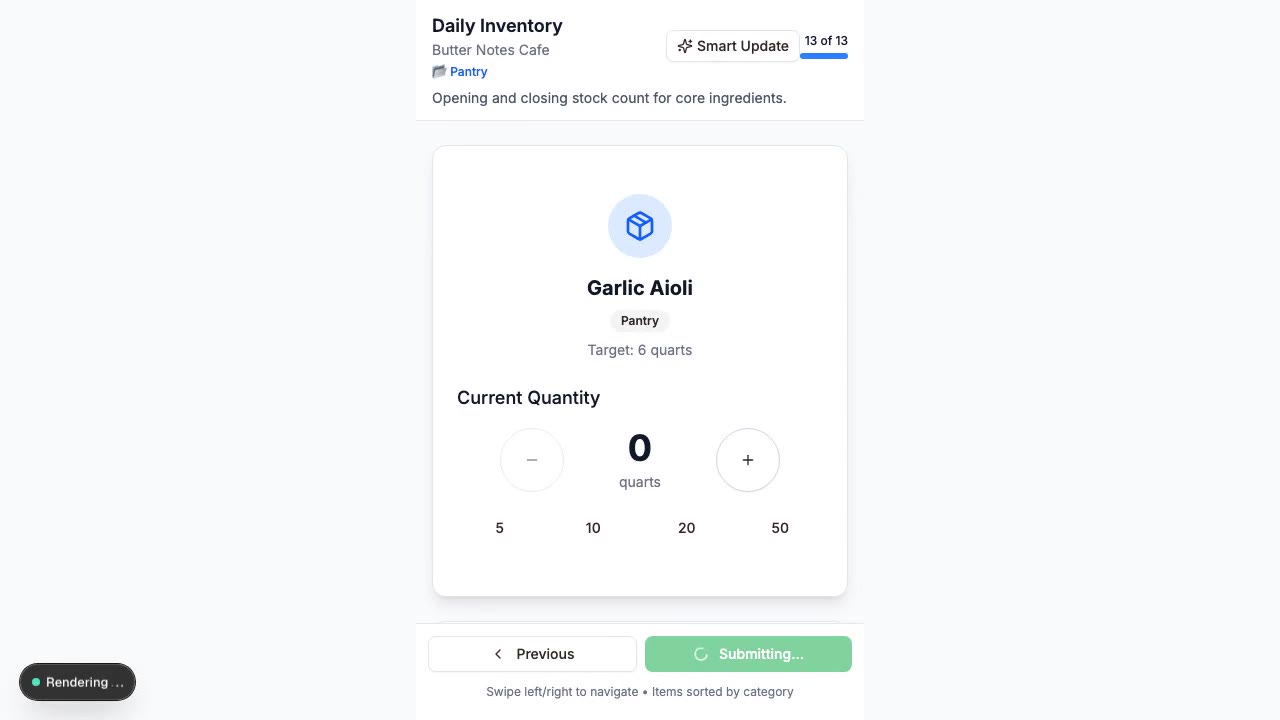
Create a form
- Open
Dashboard > Stock. - Select the store you want to configure.
- Create a stock form for a count routine such as opening prep, closing count, or weekly dry goods.
- Add items in the order the team will count them.
- Set thresholds for items that should trigger attention.
- Save the form and test it from the storefront view.
Share access
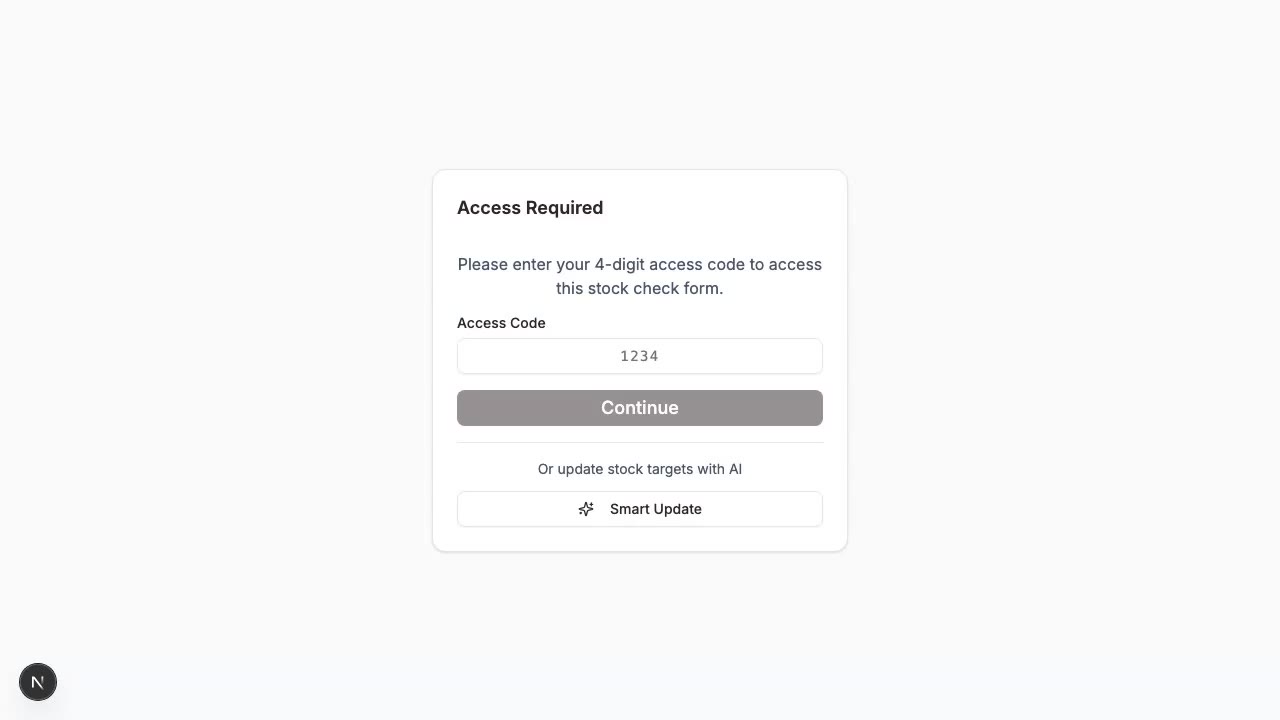
Use the share controls or QR code generator when staff need fast access from a phone. Place QR codes where the count happens, such as the walk-in, dry storage, or register area. QR links should route staff to the right store and form without sending them through the owner dashboard.
Review results
Use the stock dashboard to see active forms, recent checks, and items below target. If a form is noisy, split it into smaller workflows by station or storage area. If staff skip items repeatedly, rename the item, add a note, or move it closer to related items in the form.
Alerts
Low-stock alerts are most useful when thresholds match ordering behavior. Set thresholds around the point where the next order decision should happen, not the point where the item is already unavailable. Use notification emails for managers who are responsible for ordering.